Website widget: install, lead form and settings
Put a voice assistant on your website so visitors can talk to your agent from their browser on NovaReps. Everything lives on one page, the widget page.
Updated Oct 28, 2026 · 8 min read
On this page
Overview #
The widget adds a floating button to your site. A visitor clicks it, optionally leaves their details, then talks to your inbound agent using their microphone.
Step 1: Create a widget #
- Open Web Embeds in the sidebar and click New widget.
- Choose an inbound agent and enter your website address, for example
https://example.com. - You land on the widget page. New widgets start with the lead form on and a daily limit of 60 minutes.
You can also switch on Website voice (or Website chat) inside an agent's settings, under Channels. Press Configure on the card and use Open widget page to reach the same page.
Step 2: Install it #
- On the widget page, open the Install tab and click Copy snippet.
- Paste the line into your site's HTML just before the closing
</body>tag, or into your CMS (WordPress, Webflow, Shopify, Squarespace, Wix).
<script src="https://yourdomain.com/embed/v1/widget.js" data-agent="YOUR_EMBED_KEY" async></script>- Use Test agent at the top of the page to try a real call. It uses minutes from your balance.
Websites #
On the Access tab, under Websites, list every address the widget may appear on. The www and non-www versions count as separate websites, so after you add one the page offers to add the other. A visitor on an address that is not listed sees nothing, and the page tells you when that happens. The same tab has Protection: human verification, your own Cloudflare Turnstile key if the platform has none, and a daily minutes limit.
Look and feel #
The widget page has four tabs: Look, Lead form, Access and Install. One Save changes button saves them all, and the page warns you before you leave with unsaved changes.
On the Look tab you can change the accent color, position, corner style, button icon, theme, label, greeting and the animated voice style. The live preview on the right updates as you go and follows your dashboard's light or dark mode. Use Button, Form and In call above the preview to see each step exactly as a visitor sees it. The preview never starts a real call; use Test agent at the top of the page for that.
Voice, text or both #
Turn Website voice and Website chat on or off on the agent's Channels tab. They are two separate switches over this widget: voice only, chat only, or both. With both on, each visitor chooses to talk or type. If your plan does not include website chat, its card shows Upgrade. Instructions and tools for each are in the card's Configure panel; this page keeps how the widget looks and installs.
The Live preview follows the agent's saved Website voice and Website chat switches: with voice only you get Button, Form, Returning and In call. With chat only you get Button, Form, Returning and Chat. With both on you also get Choose, the screen where visitors pick Talk or Chat. When a form is on, visitors fill it in first, and its button reads Start chat on the chat path. In the chat step you can type real test messages. They are free, do not use your plan's text messages, and appear in Call History marked as tests.
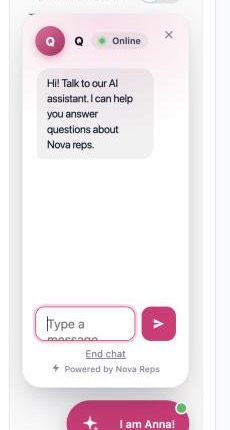
A chat looks like a normal messaging window: the visitor types, your agent replies in writing, and it can use the same knowledge and tools as on a call. Chat replies use your plan's text messages, not minutes. The same protections apply as for calls: the website list, human verification, the lead form and the daily limit. If the visitor asks for a person, the agent hands the chat over, stops replying and emails you. Chats appear in Call History as chat conversations, and you can see the transcript there.
New replies appear word by word, and not at all for visitors who ask their device to reduce motion. When a chat ends, the visitor is asked Was this helpful? with a thumbs up or down; the answer shows in Call History as Visitor rating. The visitor can also choose Email me this chat. If they gave an email in the lead form it is sent there; otherwise they type an address under a short note that you may contact them at it, and that address is saved as a lead and cannot be changed for that chat. The transcript is sent once, only to that address, with your branding, and daily limits stop abuse.
To warn visitors when you are closed, switch on business hours for the agent, then open Configure on the Website chat card and write the After hours note (up to 300 characters). It shows above the chat box outside your hours and the assistant keeps answering. Leave it empty to use the standard note.
If your plan stops including text conversations, the widget quietly goes back to voice only.
Before the call: the lead form #
On the Form tab, switch on Form before the call to ask visitors for their details first. While it is off, visitors go straight into the call when they press the button and no lead is saved.
- Choose whether name, email and phone are Required, Optional or Don't ask.
- Add optional consent text (shown as a tick box) and a privacy policy link.
- Turn on Email me each new lead if you want an email for every submission. It is off by default.
When the visitor presses Start call, their details are saved and the call starts straight away. The details are kept even if the visitor then denies the microphone. Visitors type these details themselves, so they are not verified. The assistant may greet them by name and confirms the phone number out loud before using it. We never send a text message to a number typed into this form.
Use the Form button above the preview to see how the form looks. The widget keeps the same size on every step, with your voice animation playing softly behind the form. Visitors can close the widget with the X in its top corner or the Esc key. During a call, closing only hides the widget and the call keeps going; only End call hangs up.
Returning visitors #
If a visitor already filled in the form in the same browser tab, the widget welcomes them back and they start another call with one tap. Their details are never shown on screen again, so nobody else at that device can see them. Not you? lets someone else enter their own details. This lasts until they close that tab. Use Returning above the preview to see it.
Repeat visitors become one lead #
Someone who fills in the form again with the same email updates their existing lead instead of adding a new row, however long ago they first came. Times in Leads shows how often they filled it in and Last seen shows the latest time. Details already saved are never overwritten by a later submission; only empty ones are filled in.
Where the leads go #
- Leads in the sidebar lists everyone who filled in the form, with their widget, source page and whether they went on to call. You can filter and delete leads. Export CSV creates a file of the last 12 months of leads in the background: you get a notification when it is ready, and it waits on the Reports page for 7 days. For another date range, use Reports > New report > Website leads.
- Each lead also appears on the call it led to, under Lead form details.
- Send leads to your own tools with the Lead Captured webhook event. See Send calls to HubSpot, Slack, Zapier or your CRM.
Protection #
On the Access tab:
- Human verification adds a quick, usually invisible check that keeps bots from using your minutes. Switch it on and it uses the platform's key automatically. If the platform has no key, paste your own free Cloudflare Turnstile site key and secret when asked. Your secret is stored encrypted and never shown again.
- Daily minutes limit caps the minutes this widget can use each day, across all visitors. Leave it empty for no limit.
If someone copied your snippet, open the Install tab and click Create a new key. The old snippet stops working straight away, so paste the new one on your site.
Tools on website calls #
The assistant can use the tools you gave the agent. Switch a tool off on the agent's Channels tab, under Website voice > Configure > Tools, and it is not offered to the assistant on website calls at all, so it cannot use it there; phone calls are not affected. New tools you give the agent appear there automatically. Tools that cannot work on a website call (transferring to a person, sending text messages, stopping future calls) are shown greyed out with the reason.