Creating Your First Agent (Inbound vs. Outbound)
Learn how to configure, customize, and deploy AI voice agents on NovaReps tailored for inbound receptionist calls or proactive outbound phone campaigns.
Updated Oct 28, 2026 · 14 min read
On this page
- Inbound vs. Outbound Agents
- Creating an Inbound Agent
- Canvas view
- Creating an Outbound Agent
- Test your agent by text
- Check a change before it goes live with agent tests
- Can I test my changes before I save them?
- Do tests run on their own?
- How does a test work?
- Voice to voice models
- Languages and switching language during a call
- Filtering voices by female or male
- Text conversation model
- Related Articles
Inbound vs. Outbound Agents #
Our platform supports two distinct agent directions:
| Feature | Inbound Agents | Outbound Agents |
|---|---|---|
| Primary Goal | Answering incoming telephone calls or website voice chats. | Placing automated calls to contact lists. |
| Trigger | Caller dials assigned phone number or starts web embed chat. | Dispatched via an active Outbound Campaign. |
| Dashboard Location | Agents (/dashboard/agents) |
Outbound -> Outbound Agents (/dashboard/outbound-agents) |
| Key Features | Custom greeting, Business Hours, Calendar booking, Lead capture, Web Embed. | Campaign script template, Qualifying questions, Contact list import, DNC list compliance. |
Creating an Inbound Agent #
- Navigate to Agents in the dashboard sidebar.
- Click Create Agent.
- Set the Direction to
Inbound. - Enter the Agent Name and select an LLM Engine / Voice Provider (Standard V1, Ultra-Fast V2, or Advanced V3).
- Specify your First Greeting (e.g., "Hello, thanks for calling! How may I assist you today?").
- Configure the System Prompt defining your agent's background, personality, and rules.
- Choose your lead capture mode: Calendar Booking (Google/Microsoft Calendar) or Contact Capture.
- Open the Channels tab and choose how people reach the agent. Each channel is a card (Phone calls, Website voice, Website chat and SMS) with an on/off switch and a status badge. Switch on the ones you want, then press Configure (it appears once a channel is on) to set it up.
- Click Save.
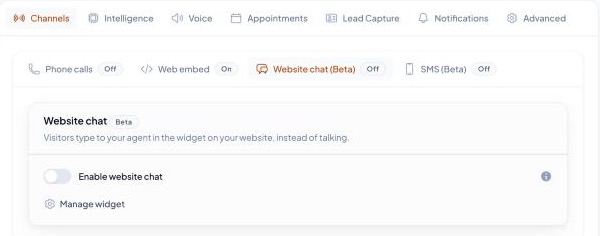
Each card shows a status: On, Off, Needs setup (with a line saying what is missing, for example "Pick a phone number") or Upgrade when your plan does not include the channel. Configure opens a panel on the right with the same order for every channel: Extra instructions, Setup (the phone number, the texting numbers, or a link to the widget page) and Tools (one list, closed until you open it; greyed tools cannot work on that channel). Press Esc or click outside the panel to close it. Changes in the panel are saved with the normal Save button, there is no separate save.
Canvas view #
The canvas is a second way to build the same agent, as a map instead of a long form. Open it with Canvas editor: on a new agent it is a button at the top of the page, on an existing agent it is in the ⋯ menu next to Delete. Your channels sit on the left, the agent in the middle, and what the agent can do on the right.
- A new agent starts with the basics: the agent, Knowledge and Phone calls. Everything else is in the toolbox on the left.
- Drag a box from the toolbox onto the canvas, or click it, to add it. On a phone, press Add at the bottom.
- Click any box to set it up in a side panel. Click the agent for its name, greeting and instructions.
- Use a box's switch to turn it on or off. A box you switch off stays on the canvas, marked Off, so you can turn it back on later. Use its x to take it off the canvas. Some boxes need another one first: Appointment booking turns on Lead capture for you.
- A channel your plan or number cannot use stays off on the canvas too, with the same reason as on the form.
- Drag boxes to arrange them. Their places are saved with the agent.
- Press Classic editor at the top right of the canvas to switch to the list of tabs and fields. Both editors show the same agent.
The canvas and the form change the same settings, so a change in one shows in the other, and nothing is saved until you press Save. If you leave the page with unsaved changes, you are asked whether to stay or leave. On a phone the canvas stacks the boxes from top to bottom: pinch to zoom.
Outbound agents have the same canvas. They place calls only, so there are no channels: the toolbox holds Outbound calls (the number the agent calls from), Opening script (the script every new campaign starts from), Knowledge, Appointment booking, Call transfer, Texts and reminders, Call recording, Voice and, once the agent is saved, Tools and integrations. A new outbound agent starts with just the agent and Outbound calls. The canvas is for building the agent; campaigns, contact lists and launching live under Outbound campaigns, and the Opening script panel links straight there. Outbound calls sits on the left like a channel and is required. Anything your plan does not include shows Upgrade. Select Take the tour at the top right of the canvas, on any agent, to see what each part does.
Phone calls has its own switch, Answer phone calls. Switching it off removes the phone number from the agent when you save. The number stays in your account and you can pick it again any time.
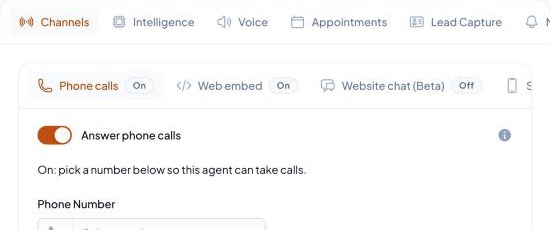
Text-only agents. An agent does not need a voice. If no phone number is assigned and Website voice is off, the Voice tab says no voice channel is on and its settings are optional, so you can save without picking a voice. Turn on Phone calls with a number, or Website voice, to use them. Test, then Chat with your agent, opens on chat for these agents.
Website voice and Website chat are two separate switches over the same website widget. Both on means each visitor chooses to talk or type, and chat can run on its own with no voice. The widget's look, lead form, websites and protection are on the widget page, which each website card links to. In Tools, switch a tool off for that channel only; tools that cannot work there, such as call transfer, are greyed with the reason on hover.
Phone calls, Website voice, Website chat and SMS each have an Extra instructions for this channel box (up to 2,000 characters). What you write there is added on top of the agent's main instructions on that channel only; it does not replace them, so only write what should differ, for example "Keep every reply to one sentence" for SMS. Leave it empty to use the main instructions as they are. Phone calls has the same Tools list as the other channels, so you can switch a tool off for phone calls only.
Creating an Outbound Agent #
- Navigate to Outbound -> Outbound Agents in the sidebar.
- Click Create Outbound Agent.
- Fill in the Agent Name and system prompt instructions.
- Set up your Outbound Script Template with dynamic contact variables like
{{name}}and{{phone}}. - Configure Qualifying Questions (e.g., "Are you looking to buy or sell within the next 30 days?").
- Connect a calendar if your agent should book appointments during outbound calls.
- Click Save Agent. After creation, link this agent to an Outbound Campaign to start placing calls.
Test your agent by text #
Try your agent in writing before you give it a phone number or add it to your website.
- Open the agent and go to its Edit Agent page.
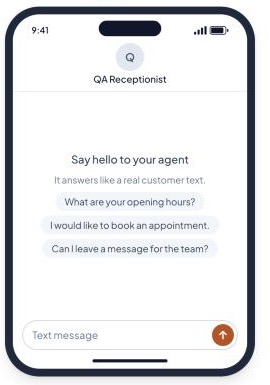
- Click Test at the top of the page, then Chat with your agent. A panel opens beside the page.
- Type a message and send it. The agent answers with the same instructions, knowledge and tools it uses on calls.
- If your plan includes both website chat and SMS, use Test as to try the agent as either one. Each uses its own model and reply style.
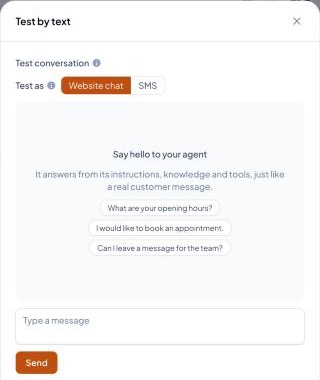
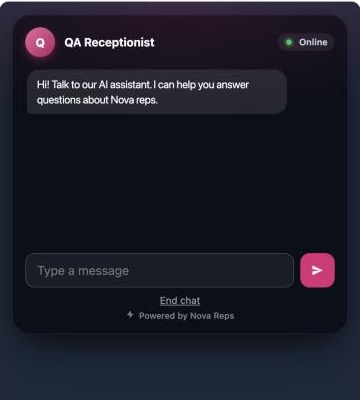
Test as Website chat shows the same chat window visitors see on your site, opened straight on the chat. On the widget page, Test chat opens it too.
When you test as SMS, the conversation appears inside a phone, with your messages on the right and the agent's grey ones on the left.
Good to know:
- Chat with your agent appears in the Test menu only while the agent is switched on and Website chat or SMS is switched on for it under Channels. In Test as, Website chat shows the widget window visitors see, and SMS shows a phone.
- Test messages are free and do not use your plan's text messages. A daily limit applies to test messages across your whole account, shared by every text channel.
- Test conversations do not appear in Analytics. They do appear in Call History, marked as test conversations. Set the Test calls filter to Real calls only to hide them.
- Closing the panel ends that test conversation. Open the panel again to start a new one.
Check a change before it goes live with agent tests #
Agent tests are scripted test calls you write once and run after every change, so you find out that your agent stopped booking, started inventing prices or gave away its instructions before a real caller does.
- Open the agent and go to its Edit Agent page.
- Click Test at the top of the page, then Run saved tests. A panel opens beside the page. It shows how many runs you have left today. The Test menu is also on the canvas editor.
- Pick a ready-made test (for example Books an appointment or Asks for something you do not offer) or click Write your own.
- Describe the caller under Who is calling and what they want, write their First thing the caller says, and list what must happen under Passes when, one check per line. You can also tick actions the agent Must do or Must never do, such as booking or transferring.
- Click Save test, then Run all tests. Each test shows Passed, Failed or Did not run. Open Details to read the conversation and the reason behind each check.
Can I test my changes before I save them? #
Yes. Run all tests uses what is in the editor right now, unsaved edits included. Change the instructions, run the tests, and save only when they pass. The result says whether it tested your unsaved changes or the saved agent. Knowledge base changes are tested once you save them.
Do tests run on their own? #
When you save an agent that has tests and the change affects how it talks or what it can do, all its tests run on the saved agent and a message tells you. They do not run again if you already tested exactly that version before saving. Each automatic run uses one of today's runs; when none are left, the agent still saves and a message says the tests did not run. There is no timed schedule: tests run when you click Run or save a change. Results are in the same panel.
How does a test work? #
An AI plays the caller from your description, and your agent answers with its real instructions, knowledge and actions. Then an AI grader checks each line under Passes when and explains its verdict. Tests are written, not spoken, so they check what your agent says and decides, not its voice or speed. Use Test, then Call your agent, to hear it.
Good to know:
- Actions are simulated in tests. Nothing is really booked, texted, transferred or sent to your own tools, and every action reports success.
- Saved tests depend on your plan, which also sets how many tests each agent can have (up to 10). Pressing Run runs all of an agent's tests at once and counts as one run.
- Tests do not use your call minutes. Your account can run tests 25 times a day across all agents when your own AI key is used, or 5 times a day otherwise.
- Tests use the agent's own AI model when it can answer in writing, otherwise the default chat model. The result panel names the model used.
- Tests are available for inbound agents.
Voice to voice models #
On the Advanced tab, under Performance & Logic, How the agent talks lets you choose between Separate listening, thinking and voice and Voice to voice (one model). It sits above the Intelligence Model list, follows your plan's access to advanced settings, and only appears when a voice to voice model is available to you.
A voice to voice model hears the caller and speaks back by itself, so it does not use a separate speech-to-text service or voice provider.
When you choose Voice to voice:
- The Intelligence Model list shows only voice to voice models, and the provider picker is hidden.
- The listening, voice engine, wait phrase and turn timing settings are hidden, because they do not apply. The Creativity setting is also hidden, as these models do not accept it.
- A single Voice list appears on the Voice tab, showing the voices that model can speak with.
- Your earlier listening and voice choices are kept. Switch back to Separate and they return as you left them.
- You only need the API key for the model's own provider, not separate listening or voice keys.
Next to each voice in the Voice list you can press the play button to hear a short sample before choosing it. The sample plays in your Conversation Language. If there is no sample in that language yet, you see a short message instead of a sample in another language; the voice still works on calls and you can ask your admin to generate samples.
If your account's default is a voice to voice model, the guided setup (Setup wizard) shows that model's voices in its voice step, with the same sample button, and skips the voice engine choice.
Languages and switching language during a call #
A voice to voice model can speak many languages. On the Voice tab, Conversation Language is the language the agent greets and speaks in. The list shows the languages that have been enabled for your account, and English is always available.
If the caller speaks another language decides what happens when a caller uses a different language:
- Ask the caller before switching (recommended): the agent stays in the conversation language and asks one short question before changing. This avoids a wrong switch when an accent or a noisy line is mistaken for another language.
- Never switch: every call stays in the conversation language. This is the strictest choice: the model's own language setting is locked to the conversation language as well.
- Switch automatically: the agent changes language when the caller clearly asks for it or speaks a full sentence in it.
Agents that use separate listening and voice services always stay in their conversation language, so this setting is not shown for them.
Filtering voices by female or male #
Above the voice list, Show voices narrows the list to Female or Male voices, or shows All voices. It works for voice to voice, Deepgram and Cartesia voices, on the agent's Voice tab and in the guided setup. It only filters the list: the voice you already picked stays selected until you choose another one. ElevenLabs voices are entered by voice ID, so there is no list to filter.
Voice to voice models appear once they have been enabled for your account.
Text conversation model #
Website chat, text messages and the Chat API are written by an AI model. On the Advanced tab, Performance & Logic (Voice) keeps the model for calls. Two more sections choose the written replies: Performance & Logic (Text) has the Website chat model (also used by the Chat API), and Performance & Logic (SMS) has the SMS model. On plans without model choice they show which platform default answers.
- Leave a field on Platform default to let the platform choose the model.
- Each section appears only when your plan includes that channel, and only for inbound agents.
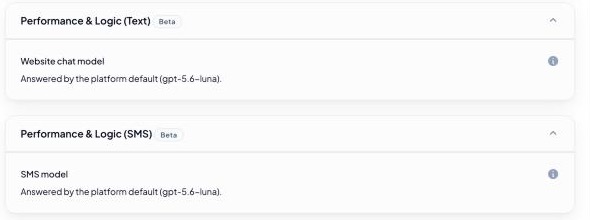
- You can pick your own model only on plans that allow it. On other plans the section shows which platform default model answers, with a small gem icon (hover it to see why).